A practical guide to planning your day with time blocks
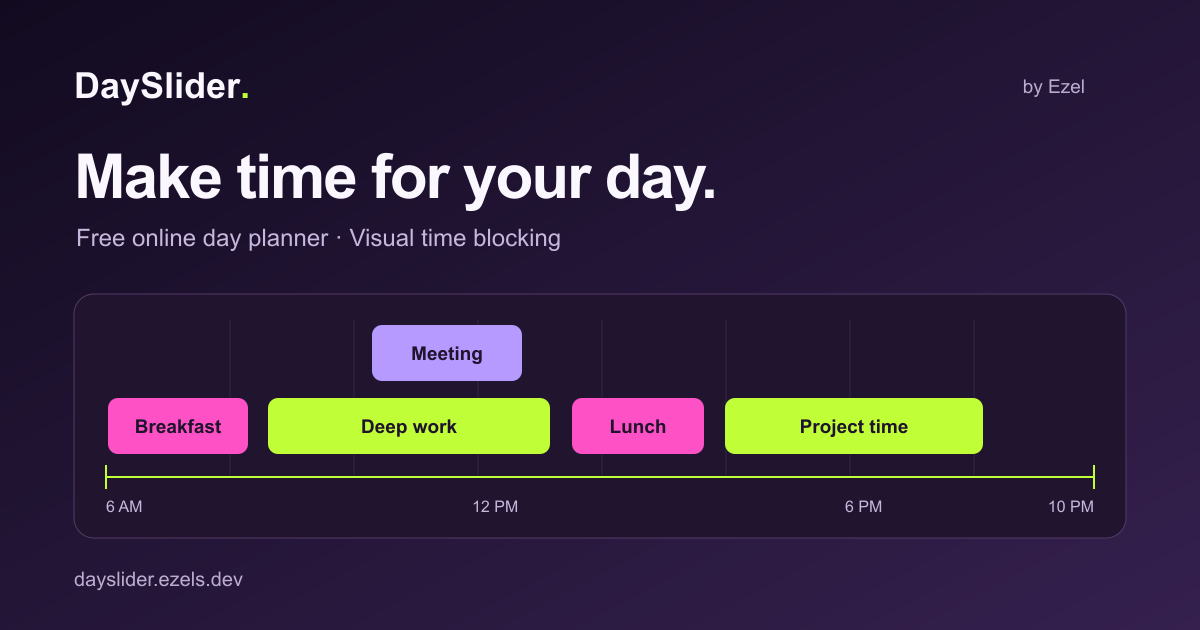
DaySlider is a free online day planner that turns your waking hours into a visual timeline. Draw a block for each activity, adjust its length, and move it when your plans change.
You can start planning immediately, without an account. Your day plans are saved in this browser. Signing in with Google is optional and keeps your plans in sync across your devices.
1. Set the hours you want to plan
A new day starts at 6 AM and ends at 10 PM, giving you a 16-hour timeline. Choose your wake-up and sleep times to fit your own routine. The time menus offer half-hour choices; the pencil button appears when you hover or focus on a time control, and lets you enter an exact time.
If your sleep time is earlier than your wake-up time, DaySlider treats it as the following day. This also makes the planner useful for overnight schedules.
2. Draw time blocks for your tasks
Drag across an empty row of the timeline to create a task. Click its “Untitled” name to rename it, or use the plus button to add a task without dragging. Resize a block from either edge, then drag it horizontally to move it to a different time.
Choose a 15-minute, 30-minute or 1-hour snap interval for the level of detail you need. The grid can be hidden while snapping stays available.
Use the three rows to show activities that overlap. For example, you might place “Check email” above “Breakfast” when both happen during the same period. Move a task vertically to change its row. Hover over a block for its edit and delete buttons. The task drawer lets you change its name, times, row and color; changes apply immediately.
Hover over a task and press Ctrl+C to copy it, then move the pointer to where you want the copy and press Ctrl+V. On a Mac, use Command+C and Command+V. The copy goes into a nearby free slot without moving your existing tasks. If no slot fits, DaySlider tells you instead of replacing a task.
The color squares at the bottom of the sidebar show the total duration of tasks in each color, ranked from longest to shortest. Unused colors are hidden. Overlapping tasks each contribute their own duration.
3. Make a plan that has room to change
Start with fixed commitments, such as a meeting or a class. Add blocks for meals and breaks, then fit focused work into the spaces between them. Avoid filling every minute: open space gives you room for delays or a task that takes longer than expected.
A daily time-blocking plan shows when you intend to do something, rather than only listing what needs to be done. DaySlider keeps that plan visual. It does not send reminders or add events to your calendar.
Create separate days in “My days” when you want different routines. You can rename a day from its title or the pencil in the sidebar. Choose Bold, Daybook or Standard at the bottom to change the appearance. Standard also has a dark-mode switch.
4. Know where your plans are saved
DaySlider saves plans automatically in local storage on this browser. Returning with the same browser and profile on the same device brings them back. Signing in with Google also syncs your plans to your account, so they appear on any device or browser where you sign in. If you edit on two devices, DaySlider merges the changes, keeping the most recent version of each day.
Clearing the site’s browser data removes locally saved plans. Private browsing may discard them when the session ends. Task names and day names are not public pages, and they are not included in the site’s sitemap.
Common questions
Is DaySlider free?
Yes. The day planner is free to use, and an account is not required to start planning.
Can tasks overlap?
Yes. You can place overlapping blocks in different rows to show simultaneous activities.
Can I use it on a phone?
Yes. On a narrow screen, swipe horizontally across the timeline to see the full day. The plus button creates tasks, and the task drawer provides precise editing controls.
Will changing my wake time move my tasks?
Yes. Changing your wake time shifts task times with it. Blocks are kept within the new waking-hour range.
Does signing in back up and sync my plans?
Yes. Once you sign in, your plans are saved to your account and kept up to date on every device where you sign in. Without signing in, plans stay only in your browser.
Try a visual plan for your next day
Set your waking hours, add the activities that matter, and leave some room between them.
Open DaySlider